

- 自定义功能市场插件编写教程
- 这份文档适合谁看
- 插件开发教程能解决什么问题
- 插件系统的基本定位
- 插件的真实工作方式
- 视频小能手软件对应补充
- 插件包目录建议
- 最核心的文件:manifest.json
- 必填字段
- 常用字段完整说明
- 可选字段
- 参数类型说明
- 内置变量
- 扩展变量
- 自定义参数变量
- 映射变量 variables
- visible_when 和 conditions 的区别
- 输出策略 output_strategy
- 动态输出名 output_name_template
- 单文件与批量插件怎么设计
- 多输入插件怎么写
- 视频小能手FFmpeg 滤镜转义写法
- 命令编写规则
- 插件系统对输出文件名做了什么
- 插件导入前的自检清单
- 参数 key 的保留名称
- 常见错误与原因
- 推荐测试流程
- 开发建议
- 推荐参考插件模板
- 如何配合 AI 一起写插件
- 总结
自定义功能市场插件编写教程 #
视频小能手插件自定义功能市场插件编写教程用于指导开发者、进阶用户、技术支持人员和内容团队编写可直接导入视频小能手软件的插件配置文件。
这份教程不是为了让模型输出 JSON,而是为了让开发者真正理解插件系统的设计思路、字段规则、兼容边界、调试方法和常见错误,让每一位用
户都能把自己的处理想法变成功能插件
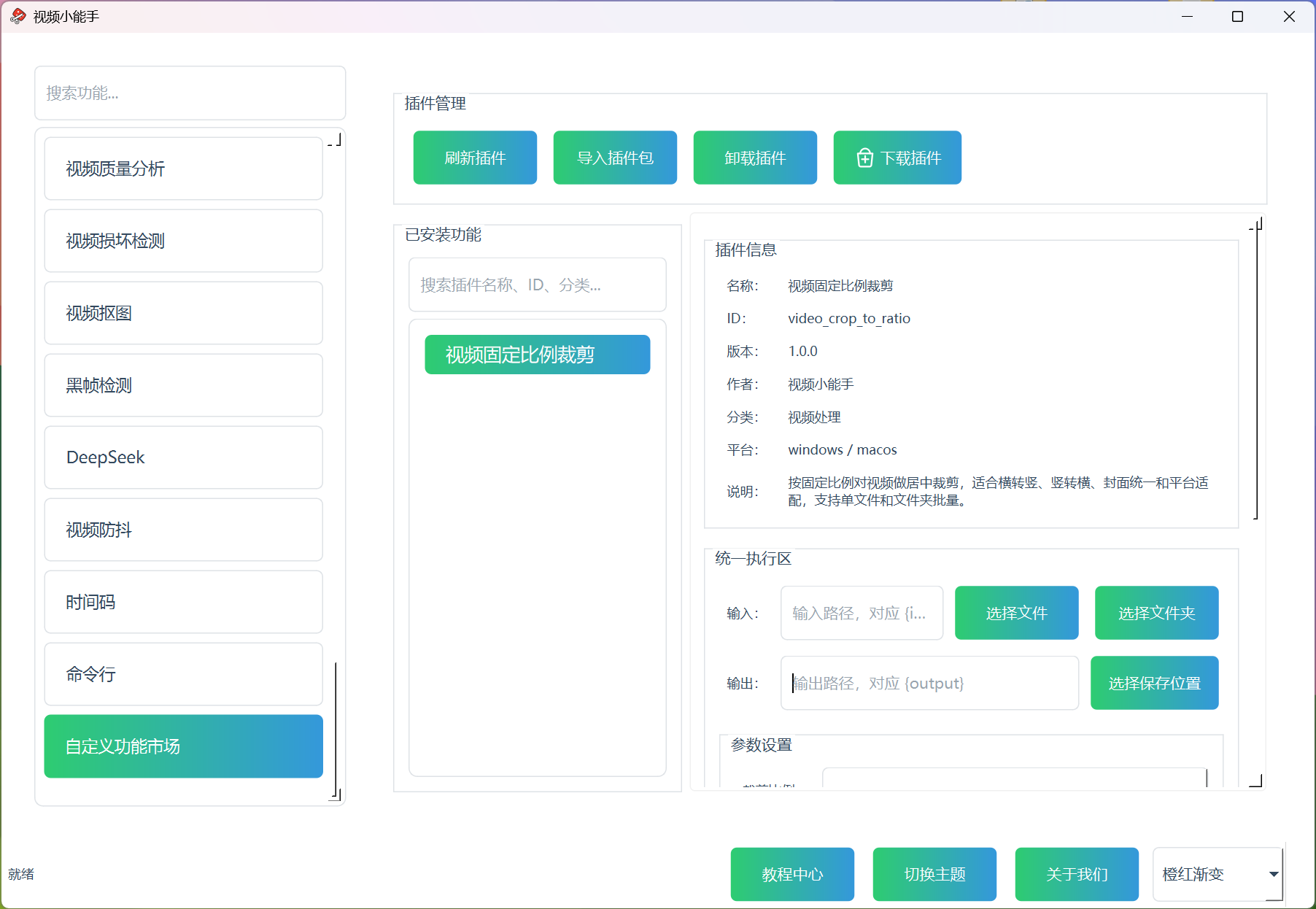
这份文档适合谁看 #
- 想自己编写插件的普通用户
- 会写 JSON 但不熟悉插件系统规则的开发者
- 想把插件交给 AI 生成、但自己负责审核的人
- 需要为团队制作内网插件的技术支持人员
- 想把视频、音频、图片、文本处理能力做成可重复使用模板的人
插件开发教程能解决什么问题 #
这份教程重点解决下面这些实际问题:
- 插件
manifest.json应该怎么写 - 哪些字段是必填,哪些字段是可选
- 单文件和文件夹批量应该怎么设计
- 输出是文件、目录、文本、JSON 时应该怎么选模式
- 插件如何支持多输入资源,例如图片水印、字幕文件、背景音频、遮罩图
- 插件如何根据下拉框选项改变命令结构
visible_when和conditions到底有什么区别- 为什么有的插件导入失败
- 为什么有的插件能导入但执行失败
- 如何让插件在
Windows和macOS下都能稳定工作
插件系统的基本定位 #
视频小能手 的插件系统不是脚本运行平台,也不是让插件自己画界面的应用框架。它本质上是:
- 由软件统一生成界面
- 插件只负责定义参数和命令模板
- 软件负责选择输入输出、生成参数控件、替换变量、执行命令、显示日志
这意味着插件开发者需要写的核心内容其实是一个 manifest.json,而不是 Python 脚本、Shell 脚本或一整套自定义窗口。
插件的真实工作方式 #
按当前真实实现,插件工作流大致如下:
- 软件读取
manifest.json - 校验字段是否合法
- 根据
params自动生成参数界面 - 用户手动选择输入路径和输出路径
- 软件根据参数值、输入路径和输出路径替换变量
- 如果存在
conditions,再把对应命令片段插入基础命令 - 调用内置
FFmpeg或FFprobe执行任务 - 在界面中显示进度、状态和日志
- 成功后返回最终输出文件或输出目录
所以,写插件时最重要的不是“把命令拼得多复杂”,而是“让字段结构和系统规则保持一致”。
视频小能手软件对应补充 #
当前插件系统已经明确支持这些能力:
input_mode:file/folder/bothoutput_mode:file/directory/autooutput_strategy:direct_file/stdout_to_fileparams动态参数visible_when参数显示条件conditions命令条件逻辑variables映射变量output_name_template动态文件名模板output_ext动态扩展名- 自动重命名避免覆盖
- 文本 / JSON / 分析结果导出
- 序列输出检测
- 批量文件夹模式逐个文件自动执行
插件包目录建议 #
一个插件包通常建议包含:
manifest.jsonreadme.md,可选icon.png,可选- 其他静态资源文件,按需求可选
如果你只是快速测试,也可以先只导入一个单独的 manifest.json 文件。
最核心的文件:manifest.json #
这是插件系统的核心配置文件。当前系统会先读取它,再决定如何显示插件、如何生成参数界面、如何执行命令。
最小可用示例 #
{
  "id": "mute_video",
  "name": "视频静音",
  "version": "1.0.0",
  "author": "视频小能手",
  "description": "移除视频中的音频轨道。",
  "category": "音频处理",
  "platforms": ["windows", "macos"],
  "input_mode": "file",
  "output_mode": "file",
  "file_types": ["mp4", "mov", "mkv"],
  "output_ext": "mp4",
  "params": [],
  "command_args": [
    "{ffmpeg}",
    "-i",
    "{input}",
    "-an",
    "-c:v",
    "copy",
    "{output}"
  ]
}
如果你第一次写插件,建议先从这种最小结构开始,先确认能成功导入、成功执行,再往上加条件逻辑和复杂参数。
必填字段 #
当前系统至少要求这些字段存在:
idnameversiondescriptioncommand_args
如果你想写成完整、规范、适合长期维护的版本,建议你再稳定带上:
authorcategoryplatformsinput_modeoutput_modefile_typesoutput_extparams
常用字段完整说明 #
id #
插件唯一标识。
当前系统要求:
- 只能使用小写字母、数字、下划线
- 不能包含空格
- 不能包含大写字母
- 不能和保留变量名冲突
推荐示例:
mute_videovideo_add_watermarkbatch_audio_extractor
name #
插件在界面里的显示名称,用户会直接看到它。
例如:
视频静音批量视频音频提取视频添加图片水印
version #
建议使用语义化版本号,例如:
1.0.01.1.02.0.0
author #
插件作者名称,可以写个人名、团队名、公司名或 其他。
description #
插件功能说明。建议写清楚:
- 做什么
- 处理对象是什么
- 输出什么
- 有什么限制
category #
插件分类,主要用于列表浏览和搜索。
例如:
视频处理音频处理分析工具字幕处理实验功能
platforms #
建议始终写:
["windows", "macos"]
因为当前系统明确按跨平台方向设计,我们建议开发者不要只写单平台思维。
input_mode #
决定输入方式。
file:只能选单个文件folder:只能选文件夹both:既支持单文件,也支持文件夹批量
如果你希望插件既能处理单个文件,又能处理文件夹批量,优先考虑:
"input_mode": "both"
output_mode #
决定输出是文件、目录还是自动判断。
file:用户选择一个输出文件directory:用户选择一个输出目录auto:单文件时按文件,文件夹输入时按目录
最常见经验:
- 单文件输出一个结果文件:用
file - 批量输出很多文件:用
directory - 同时兼容单文件和批量:优先用
auto
file_types #
用于限制输入类型。
例如:
["mp4", "mov", "mkv"]
注意:
- 可以写不带点的扩展名
- 当前系统会按输入文件扩展名判断是否可用
- 写得越准确,用户越不容易选错
output_ext #
默认输出扩展名。
可以写固定值:
"output_ext": "mp4"
也可以写动态值:
"output_ext": "{format}"
这在“用户从下拉框选择输出格式”的插件里非常常见。
params #
参数定义数组。它决定界面上会显示哪些可调参数。
如果插件没有额外参数,也必须明确写:
"params": []
command_args #
命令参数数组。它是插件真正的执行核心。
必须注意:
- 必须是字符串数组
- 不能写成整条命令字符串
- 第一个元素通常必须是
{ffmpeg}或{ffprobe} - 不要写
&& - 不要写管道
- 不要自己写循环
错误写法:
"command_args": "{ffmpeg} -i {input} {output}"
正确写法:
"command_args": [
  "{ffmpeg}",
  "-i",
  "{input}",
  "{output}"
]
可选字段 #
当前系统还支持这些重要可选字段:
conditionsvariablesoutput_strategyoutput_encodingoutput_name_templatevisible_when
如果插件需求比较复杂,这些字段几乎迟早都会用到。
参数类型说明 #
当前面板真实支持的参数类型包括:
textnumberselectboolfilefolder
text #
普通文本输入。
{
  "type": "text",
  "label": "显示文字",
  "key": "text",
  "default": "Hello"
}
number #
数字输入。
{
  "type": "number",
  "label": "CRF值",
  "key": "crf",
  "default": 23,
  "min": 16,
  "max": 35,
  "step": 1
}
select #
下拉选择,最适合做模式切换、风格切换、输出格式选择。
{
  "type": "select",
  "label": "位置",
  "key": "position",
  "default": "bottom",
  "options": [
    { "label": "顶部", "value": "top" },
    { "label": "底部", "value": "bottom" }
  ]
}
bool #
布尔开关,也就是勾选框。
{
  "type": "bool",
  "label": "是否启用",
  "key": "enabled",
  "default": true
}
file #
额外文件资源选择器,例如:
- 图片水印
- 字幕文件
- 字体文件
- LUT 文件
{
  "type": "file",
  "label": "选择字幕文件",
  "key": "subtitle_file",
  "default": ""
}
folder #
额外目录资源选择器,例如:
- 素材目录
- LUT 总目录
- 输出模板目录
内置变量 #
当前系统支持这些核心内置变量:
{ffmpeg}{ffprobe}{input}{output}{temp_dir}{plugin_dir}
含义如下:
{ffmpeg}:自动替换为软件内置ffmpeg绝对路径{ffprobe}:自动替换为软件内置ffprobe绝对路径{input}:当前输入文件路径{output}:当前输出文件或输出目录内的最终目标路径{temp_dir}:插件缓存目录{plugin_dir}:当前插件安装目录
扩展变量 #
当前 worker 还支持更多输入输出相关变量:
{input_name}{input_stem}{input_ext}{input_suffix}{input_dir}{output_name}{output_stem}{output_ext}{output_suffix}{output_dir}
这些变量在动态文件名、目录输出、扩展名联动时非常有用。
自定义参数变量 #
如果你在 params 中定义了:
{
  "key": "text"
}
那么在命令里就可以直接写:
{text}
系统会自动替换成用户在界面里填写的值。
映射变量 variables #
有些插件不是直接把参数值写进命令,而是需要先映射成另一套值。这时就应该使用 variables。
例如:
"variables": {
  "draw_y": {
    "top": "40",
    "bottom": "h-text_h-40"
  }
}
然后在命令中写:
{draw_y[position]}
这表示:
- 如果
position = top,就替换成40 - 如果
position = bottom,就替换成h-text_h-40
这类写法非常适合:
- 位置映射
- 预设档位映射
- 颜色方案映射
- 模板名称映射
visible_when 和 conditions 的区别 #
这是开发者最容易写错的一组逻辑。
visible_when #
作用:
- 只控制参数在界面上是否显示
- 不直接改变执行命令
适合场景:
- 选择“电影感”时显示电影感专用参数
- 选择“自定义”时显示更多高级选项
示例:
{
  "type": "number",
  "label": "电影感对比度",
  "key": "cinematic_contrast",
  "default": 1.5,
  "min": 0.5,
  "max": 3.0,
  "step": 0.1,
  "visible_when": {
    "style": "cinematic"
  }
}
conditions #
作用:
- 根据用户参数值决定命令里要插入哪些参数片段
- 会真实改变最终执行命令
适合场景:
- 下拉框选择不同滤镜风格
- 勾选框决定是否插入一段滤镜
- 不同模式下命令结构完全不同
示例:
"conditions": [
  {
    "when": { "style": "cinematic" },
    "args": ["-vf", "eq=contrast=1.5:saturation=1.2"]
  },
  {
    "when": { "style": "warm" },
    "args": ["-vf", "colorbalance=rs=0.1:gs=0.05:bs=-0.05"]
  }
]
最简单的理解 #
visible_when:决定“这个参数看不看得见”conditions:决定“这段命令执不执行”
输出策略 output_strategy #
当前系统支持两种输出策略。
direct_file #
适合:
- 视频
- 音频
- 图片
- 动图
- 直接由处理引擎写出文件的结果
这是最常见的默认策略。
stdout_to_file #
适合:
- 文本分析
- JSON 导出
- 报告导出
- 命令标准输出就是最终结果的插件
例如:
"output_strategy": "stdout_to_file",
"output_encoding": "utf-8"
这类插件通常更适合:
ffprobe信息导出- 分析结果导出
- 文本日志输出
动态输出名 output_name_template #
如果插件输出到目录,系统可以根据模板自动生成每个文件的文件名。
默认常见写法:
"output_name_template": "{input_stem}.{output_ext}"
也可以写成:
"output_name_template": "{input_stem}_audio.{output_ext}"
如果是序列输出,可以写成:
"output_name_template": "{input_stem}_%04d.{output_ext}"
单文件与批量插件怎么设计 #
这是最值得写清楚的部分之一。
只支持单文件 #
"input_mode": "file",
"output_mode": "file"
只支持文件夹批量 #
"input_mode": "folder",
"output_mode": "directory"
同时支持单文件和文件夹批量 #
最推荐:
"input_mode": "both",
"output_mode": "auto"
按当前真实逻辑:
- 单文件输入时,系统按单文件执行
- 文件夹输入时,系统会自动遍历符合
file_types的文件逐个执行 - 你不需要自己在插件里写循环
多输入插件怎么写 #
多输入插件是当前系统的重点能力之一。
典型场景:
- 视频 + 图片水印
- 视频 + 字幕文件
- 视频 + 背景音乐
- 视频 + 遮罩图
- 视频 + LUT 文件
写法思路:
- 主输入仍然用
{input} - 额外资源写成
params里的file或folder - 在
command_args里继续补第二组、第三组-i
例如:
"command_args": [
  "{ffmpeg}",
  "-i",
  "{input}",
  "-i",
  "{watermark}",
  "{output}"
]
视频小能手FFmpeg 滤镜转义写法
如果变量要进入 drawtext、subtitles、lut3d、filter_complex 等复杂滤镜字符串,建议你使用ffmpeg支持的过滤器写法:
{变量名|ffmpeg_filter}{变量名|ffmpeg_filter_path}
普通文本值 #
text='{text_content|ffmpeg_filter}'
路径值 #
fontfile='{font_file|ffmpeg_filter_path}'
如果是 drawtext 显示普通文本,建议同时加:
expansion=none
这样能减少 % 等符号被 FFmpeg 错误展开的问题。
命令编写规则 #
写 command_args 时建议严格遵守以下原则:
- 第一个元素通常必须是
{ffmpeg}或{ffprobe} - 命令参数必须逐项拆开写
- 不要把整条命令写成一个字符串
- 不要写管道
- 不要写
&& - 不要依赖系统
PATH - 不要写死绝对路径
- 不要自己写批量循环
插件系统对输出文件名做了什么 #
这是很多开发者第一次写插件时容易误解的地方。
当前系统不会强制覆盖同名文件。
如果目标路径已经存在:
- 系统会自动改名
- 会自动追加
_1、_2之类后缀 - 序列输出也会自动避让
所以开发者不需要在插件里手动再写复杂的重命名逻辑。
插件导入前的自检清单 #
建议每次导入前先检查:
id是否只含小写字母、数字、下划线command_args是否真的是数组params是否是数组input_mode是否只用file / folder / bothoutput_mode是否只用file / directory / autooutput_strategy是否只用direct_file / stdout_to_fileconditions是否是数组conditions[].when是否是对象conditions[].args是否是字符串数组visible_when是否写在单个参数对象里- 参数
key是否没有使用保留名称
参数 key 的保留名称 #
当前系统中,参数 key 不要使用这些保留名:
ffmpegffprobeinputoutputtemp_dirplugin_dir
否则导入校验就会失败。
常见错误与原因 #
1. 导入时报“缺少必要字段” #
通常是:
- 少了
id - 少了
name - 少了
version - 少了
description - 少了
command_args
2. 导入时报 command_args 必须是数组 #
说明你把命令写成整条字符串了。
3. 导入成功但执行失败 #
常见原因:
- 输入文件类型不在
file_types里 conditions插入的命令结构不对- 变量名写错
- 滤镜字符串没做正确转义
- 输出扩展名和真实命令行为不匹配
4. 单文件能跑,批量模式失败 #
常见原因:
input_mode没写bothoutput_mode没写directory或auto- 插件误以为系统会自动把目录当单文件输出
5. 文本分析插件没有生成文件 #
通常是忘了写:
"output_strategy": "stdout_to_file"
推荐测试流程 #
每次写新插件,建议按这个顺序测试:
- 先做最小插件版本
- 先测试单文件输入
- 看命令预览是否符合预期
- 看日志里有没有明显报错
- 再加
params - 再加
conditions - 最后再测试文件夹批量模式
这样更容易快速定位问题到底出在字段结构、变量替换,还是具体命令本身。
开发建议 #
- 先写稳定版本,再写花哨版本
- 先保证扩展名和真实输出一致
- 先保证单文件稳定,再扩展批量模式
- 复杂风格切换优先使用
conditions - 参数显示隐藏优先使用
visible_when - 涉及多资源输入时,额外资源一律写入
params - 需要现代网页或客户端兼容时,优先使用更稳妥的编码参数
推荐参考插件模板 #
基础模板 #
{
  "id": "example_plugin",
  "name": "示例插件",
  "version": "1.0.0",
  "author": "AI生成",
  "description": "这里写功能说明",
  "category": "实验功能",
  "platforms": ["windows", "macos"],
  "input_mode": "file",
  "output_mode": "file",
  "file_types": ["mp4", "mov", "mkv"],
  "output_ext": "mp4",
  "params": [],
  "output_strategy": "direct_file",
  "command_args": [
    "{ffmpeg}",
    "-i",
    "{input}",
    "-c:v",
    "libx264",
    "-pix_fmt",
    "yuv420p",
    "-c:a",
    "copy",
    "-movflags",
    "+faststart",
    "{output}"
  ]
}
带 conditions 的风格滤镜模板 #
这个模板适合“一个下拉框切换多种命令结构”的场景。
{
  "id": "style_filter_demo",
  "name": "风格滤镜示例",
  "version": "1.0.0",
  "author": "AI生成",
  "description": "根据用户选择应用不同滤镜风格。",
  "category": "视频处理",
  "platforms": ["windows", "macos"],
  "input_mode": "file",
  "output_mode": "file",
  "file_types": ["mp4", "mov", "mkv", "avi"],
  "output_ext": "mp4",
  "params": [
    {
      "type": "select",
      "label": "滤镜风格",
      "key": "style",
      "default": "cinematic",
      "options": [
        { "label": "电影感", "value": "cinematic" },
        { "label": "暖色", "value": "warm" },
        { "label": "冷色", "value": "cool" },
        { "label": "暗调", "value": "dark" }
      ]
    }
  ],
  "output_strategy": "direct_file",
  "command_args": [
    "{ffmpeg}",
    "-i",
    "{input}",
    "-c:v",
    "libx264",
    "-pix_fmt",
    "yuv420p",
    "-c:a",
    "copy",
    "-movflags",
    "+faststart",
    "{output}"
  ],
  "conditions": [
    {
      "when": { "style": "cinematic" },
      "args": ["-vf", "eq=contrast=1.5:saturation=1.2,curves=preset=medium_contrast"]
    },
    {
      "when": { "style": "warm" },
      "args": ["-vf", "colorbalance=rs=0.1:gs=0.05:bs=-0.05"]
    },
    {
      "when": { "style": "cool" },
      "args": ["-vf", "colorbalance=rs=-0.05:gs=0.05:bs=0.1"]
    },
    {
      "when": { "style": "dark" },
      "args": ["-vf", "eq=brightness=-0.1:contrast=1.3"]
    }
  ]
}
带 visible_when 的风格模板 #
这个模板适合“某些参数只在特定风格下显示”的场景。
{
  "id": "cinematic_style_filter",
  "name": "电影风格滤镜",
  "version": "1.1.0",
  "author": "AI生成",
  "description": "为视频应用可选的电影风格滤镜,并支持不同风格显示不同参数。",
  "category": "视频处理",
  "platforms": ["windows", "macos"],
  "input_mode": "file",
  "output_mode": "file",
  "file_types": ["mp4", "mov", "mkv", "avi", "flv", "wmv", "webm"],
  "output_ext": "mp4",
  "params": [
    {
      "type": "select",
      "label": "滤镜风格",
      "key": "style",
      "default": "cinematic",
      "options": [
        { "label": "电影感", "value": "cinematic" },
        { "label": "暖色", "value": "warm" },
        { "label": "冷色", "value": "cool" },
        { "label": "暗调", "value": "dark" }
      ]
    },
    {
      "type": "number",
      "label": "电影感对比度",
      "key": "cinematic_contrast",
      "default": 1.5,
      "min": 0.5,
      "max": 3.0,
      "step": 0.1,
      "visible_when": { "style": "cinematic" }
    },
    {
      "type": "number",
      "label": "电影感饱和度",
      "key": "cinematic_saturation",
      "default": 1.2,
      "min": 0.0,
      "max": 3.0,
      "step": 0.1,
      "visible_when": { "style": "cinematic" }
    }
  ],
  "output_strategy": "direct_file",
  "command_args": [
    "{ffmpeg}",
    "-i",
    "{input}",
    "-c:v",
    "libx264",
    "-pix_fmt",
    "yuv420p",
    "-c:a",
    "copy",
    "-movflags",
    "+faststart",
    "{output}"
  ],
  "conditions": [
    {
      "when": { "style": "cinematic" },
      "args": ["-vf", "eq=contrast={cinematic_contrast}:saturation={cinematic_saturation},curves=preset=medium_contrast"]
    }
  ]
}
文本分析模板 #
{
  "id": "video_info_export",
  "name": "视频信息导出",
  "version": "1.0.0",
  "author": "AI生成",
  "description": "使用 ffprobe 分析视频信息并导出为 JSON 文本。",
  "category": "分析工具",
  "platforms": ["windows", "macos"],
  "input_mode": "file",
  "output_mode": "file",
  "file_types": ["mp4", "mov", "mkv", "avi"],
  "output_ext": "json",
  "params": [],
  "output_strategy": "stdout_to_file",
  "output_encoding": "utf-8",
  "command_args": [
    "{ffprobe}",
    "-v",
    "quiet",
    "-print_format",
    "json",
    "-show_format",
    "-show_streams",
    "{input}"
  ]
}
单文件 / 批量两用模板 #
{
  "id": "batch_audio_extractor",
  "name": "批量视频音频提取",
  "version": "1.1.0",
  "author": "AI生成",
  "description": "既支持单文件提取音频,也支持文件夹批量提取音频。",
  "category": "音频处理",
  "platforms": ["windows", "macos"],
  "input_mode": "both",
  "output_mode": "auto",
  "file_types": ["mp4", "mov", "mkv", "avi"],
  "output_ext": "{format}",
  "output_name_template": "{input_stem}.{output_ext}",
  "params": [
    {
      "type": "select",
      "label": "输出音频格式",
      "key": "format",
      "default": "mp3",
      "options": [
        { "label": "MP3", "value": "mp3" },
        { "label": "AAC", "value": "aac" },
        { "label": "FLAC", "value": "flac" },
        { "label": "WAV", "value": "wav" }
      ]
    }
  ],
  "output_strategy": "direct_file",
  "command_args": [
    "{ffmpeg}",
    "-i",
    "{input}",
    "-vn",
    "{output}"
  ]
}
多输入图片水印模板 #
这个模板适合“主视频 + 水印图片”的多输入插件。
{
  "id": "video_add_watermark",
  "name": "视频添加图片水印",
  "version": "1.1.0",
  "author": "AI生成",
  "description": "为视频添加图片水印,支持选择水印图片、调整位置和缩放比例,兼容单文件和批量处理。",
  "category": "视频处理",
  "platforms": ["windows", "macos"],
  "input_mode": "both",
  "output_mode": "auto",
  "file_types": ["mp4", "mov", "mkv", "avi", "flv", "wmv", "webm", "m4v", "ts"],
  "output_ext": "mp4",
  "output_name_template": "{input_stem}_watermarked.{output_ext}",
  "output_strategy": "direct_file",
  "params": [
    {
      "type": "file",
      "label": "选择水印图片",
      "key": "watermark",
      "default": "",
      "description": "建议使用 PNG、JPG、WEBP、BMP 等常见图片格式。"
    },
    {
      "type": "select",
      "label": "水印位置",
      "key": "position",
      "default": "bottom_right",
      "options": [
        { "label": "左上角", "value": "top_left" },
        { "label": "右上角", "value": "top_right" },
        { "label": "左下角", "value": "bottom_left" },
        { "label": "右下角", "value": "bottom_right" },
        { "label": "居中", "value": "center" }
      ]
    },
    {
      "type": "number",
      "label": "水印缩放比例 (%)",
      "key": "scale",
      "default": 15,
      "min": 1,
      "max": 100,
      "step": 1
    },
    {
      "type": "number",
      "label": "边距(像素)",
      "key": "margin",
      "default": 10,
      "min": 0,
      "max": 500,
      "step": 1
    }
  ],
  "command_args": [
    "{ffmpeg}",
    "-i",
    "{input}",
    "-i",
    "{watermark}",
    "-c:v",
    "libx264",
    "-pix_fmt",
    "yuv420p",
    "-movflags",
    "+faststart",
    "-c:a",
    "copy",
    "{output}"
  ],
  "conditions": [
    {
      "when": { "position": "bottom_right" },
      "args": ["-filter_complex", "[1:v][0:v]scale2ref=w=main_w*{scale}/100:h=-1[wm][base];[base][wm]overlay=
       W-w-{margin}:H-h-{margin}"]
    }
  ]
}
文字水印模板 #
这个模板覆盖 drawtext、字体文件、文本转义和位置控制。
{
  "id": "video_add_text_watermark",
  "name": "视频添加文字水印",
  "version": "1.1.0",
  "author": "AI生成",
  "description": "为视频添加文字水印,支持自定义文本、字体、大小、颜色和位置,兼容单文件和批量处理。",
  "category": "视频处理",
  "platforms": ["windows", "macos"],
  "input_mode": "both",
  "output_mode": "auto",
  "file_types": ["mp4", "mov", "mkv", "avi", "flv", "wmv", "webm", "m4v", "ts"],
  "output_ext": "mp4",
  "output_name_template": "{input_stem}_textwm.{output_ext}",
  "output_strategy": "direct_file",
  "params": [
    {
      "type": "file",
      "label": "选择字体文件",
      "key": "font_file",
      "default": "",
      "description": "请选择 TTF、TTC 或 OTF 字体文件。"
    },
    {
      "type": "text",
      "label": "水印文字内容",
      "key": "text_content",
      "default": "视频小能手"
    },
    {
      "type": "select",
      "label": "水印位置",
      "key": "position",
      "default": "bottom_right",
      "options": [
        { "label": "左上角", "value": "top_left" },
        { "label": "右上角", "value": "top_right" },
        { "label": "左下角", "value": "bottom_left" },
        { "label": "右下角", "value": "bottom_right" },
        { "label": "居中", "value": "center" }
      ]
    },
    {
      "type": "number",
      "label": "字体大小",
      "key": "font_size",
      "default": 36,
      "min": 8,
      "max": 500,
      "step": 1
    },
    {
      "type": "text",
      "label": "字体颜色",
      "key": "font_color",
      "default": "white"
    },
    {
      "type": "number",
      "label": "边距(像素)",
      "key": "margin",
      "default": 20,
      "min": 0,
      "max": 500,
      "step": 1
    }
  ],
  "command_args": [
    "{ffmpeg}",
    "-i",
    "{input}",
    "-c:v",
    "libx264",
    "-pix_fmt",
    "yuv420p",
    "-movflags",
    "+faststart",
    "-c:a",
    "copy",
    "{output}"
  ],
  "conditions": [
    {
      "when": { "position": "bottom_right" },
      "args": [
        "-vf",
        "drawtext=fontfile='{font_file|ffmpeg_filter_path}':text='{text_content|ffmpeg_filter}':expansion=
         none:fontsize={font_size}:
         fontcolor={font_color|ffmpeg_filter}:x=W-tw-{margin}:y=H-th-{margin}"
      ]
    }
  ]
}
序列输出模板 #
这个模板适合抽帧、图片序列导出、音频分段、视频分段等“一次输出一组编号文件”的场景。
{
  "id": "video_frame_export",
  "name": "视频抽帧导出",
  "version": "1.0.0",
  "author": "AI生成",
  "description": "把视频导出为图片序列。",
  "category": "视频处理",
  "platforms": ["windows", "macos"],
  "input_mode": "both",
  "output_mode": "directory",
  "file_types": ["mp4", "mov", "mkv", "avi", "webm"],
  "output_ext": "{format}",
  "output_name_template": "{input_stem}_%06d.{output_ext}",
  "params": [
    {
      "type": "select",
      "label": "输出图片格式",
      "key": "format",
      "default": "png",
      "options": [
        { "label": "PNG", "value": "png" },
        { "label": "JPG", "value": "jpg" }
      ]
    }
  ],
  "output_strategy": "direct_file",
  "command_args": [
    "{ffmpeg}",
    "-i",
    "{input}",
    "{output}"
  ]
}
动态扩展名模板 #
这个模板适合“输出扩展名会随用户选择改变”的场景。
{
  "id": "media_export_switch",
  "name": "媒体格式切换导出",
  "version": "1.0.0",
  "author": "AI生成",
  "description": "根据用户选择导出不同音频格式。",
  "category": "音频处理",
  "platforms": ["windows", "macos"],
  "input_mode": "file",
  "output_mode": "file",
  "file_types": ["wav", "flac", "aac", "m4a", "mp3"],
  "output_ext": "{format}",
  "params": [
    {
      "type": "select",
      "label": "导出格式",
      "key": "format",
      "default": "mp3",
      "options": [
        { "label": "MP3", "value": "mp3" },
        { "label": "AAC", "value": "aac" },
        { "label": "WAV", "value": "wav" }
      ]
    }
  ],
  "output_strategy": "direct_file",
  "command_args": [
    "{ffmpeg}",
    "-i",
    "{input}",
    "{output}"
  ],
  "conditions": [
    {
      "when": { "format": "mp3" },
      "args": ["-c:a", "libmp3lame", "-b:a", "192k"]
    },
    {
      "when": { "format": "aac" },
      "args": ["-c:a", "aac", "-b:a", "192k"]
    },
    {
      "when": { "format": "wav" },
      "args": ["-c:a", "pcm_s16le"]
    }
  ]
}
映射变量模板 #
这个模板适合“界面选项值需要先映射成另一套命令表达式”的场景。
{
  "id": "text_overlay_positioned",
  "name": "位置映射文字叠加",
  "version": "1.0.0",
  "author": "AI生成",
  "description": "通过映射变量把位置选项转换成 drawtext 坐标。",
  "category": "视频处理",
  "platforms": ["windows", "macos"],
  "input_mode": "file",
  "output_mode": "file",
  "file_types": ["mp4", "mov", "mkv"],
  "output_ext": "mp4",
  "variables": {
    "draw_y": {
      "top": "40",
      "bottom": "h-text_h-40"
    }
  },
  "params": [
    {
      "type": "text",
      "label": "显示文字",
      "key": "text_content",
      "default": "视频小能手"
    },
    {
      "type": "select",
      "label": "垂直位置",
      "key": "position",
      "default": "bottom",
      "options": [
        { "label": "顶部", "value": "top" },
        { "label": "底部", "value": "bottom" }
      ]
    }
  ],
  "output_strategy": "direct_file",
  "command_args": [
    "{ffmpeg}",
    "-i",
    "{input}",
    "-vf",
    "drawtext=text='{text_content|ffmpeg_filter}':expansion=none:x=40:y={draw_y[position]}",
    "{output}"
  ]
}
如何配合 AI 一起写插件 #
我们强烈推荐你借助 AI 提高效率。
更推荐的工作方式是:
- 你先读懂这份开发者中心
- 再把需求发给 AI 生成初稿
- 最后由你自己按这份教程逐项检查字段和逻辑
这样可以显著减少下面这些问题:
- AI 输出了不合法 JSON
- AI 写了整条命令字符串
- AI 忘了
conditions - AI 把
visible_when和conditions混用 - AI 写了平台专属路径
- AI 输出扩展名和真实输出不一致
总结 #
自定义功能市场插件编写教程不是一份“只告诉你字段名字”的速查表,而是一份真正面向插件作者的完整教程。它的重点不是让你死记字段,而是
帮助你理解:插件系统如何生成界面、如何替换变量、如何处理单文件和批量、如何控制条件逻辑、如何安全输出结果,以及如何避免
最常见的导入和执行错误。